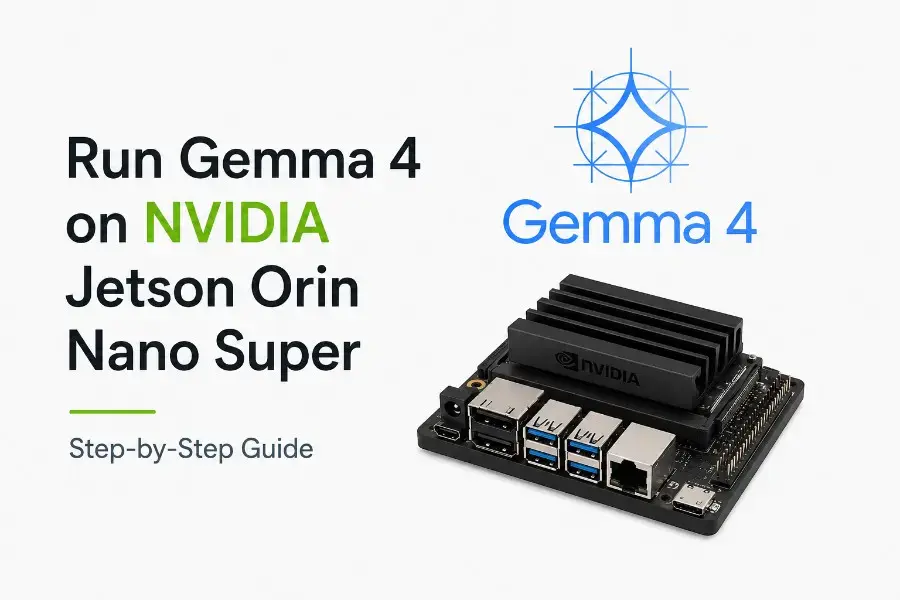
Running powerful language models directly on edge devices is no longer a futuristic idea. With Gemma 4 and the Jetson Orin Nano Super, you can now deploy efficient, high-performance AI workloads locally — without relying on cloud infrastructure.
In this guide, I’ll walk you through how I installed and ran Gemma 4 on my Jetson setup, step by step.
Why Run Gemma 4 on Jetson?
Nvidia continues to push the limits of edge AI, and the Jetson Orin Nano Super is a perfect example of that. Combined with Gemma 4, a lightweight yet capable model developed by Google and distributed via Hugging Face, you get:
- Low-latency inference
- Offline AI capabilities
- Reduced cloud costs
- Full control over your data
👉 Official sources:
- https://developer.nvidia.com/blog/bringing-ai-closer-to-the-edge-and-on-device-with-gemma-4/
- https://huggingface.co/blog/nvidia/gemma4
Prerequisites
Before starting, make sure you have:
- Jetson Orin Nano Super (JetPack 6+ recommended)
- At least 8GB RAM (16GB preferred for smoother inference)
- Ubuntu-based Jetson OS
- Internet connection (for downloading models)
- Basic Linux knowledge
Step 1: Update Your System
Always start clean:
sudo apt update && sudo apt upgrade -y
Step 2: Install Required Dependencies
You’ll need Python, pip, and some AI libraries:
sudo apt install python3-pip git  -y
pip install --upgrade pip
Install PyTorch optimized for Jetson (important 👇):
👉 Follow NVIDIA’s official wheel instructions:
https://developer.nvidia.com/embedded/downloads
Example:
pip install torch torchvision --extra-index-url https://download.pytorch.org/whl/cu121
Step 3: Install Transformers and Accelerate
pip install transformers accelerate
These libraries allow you to easily run Gemma models.
Step 4: Download Gemma 4
You’ll need access via Hugging Face:
pip install huggingface_hub
huggingface-cli login
Then download the model:
from transformers import AutoTokenizer, AutoModelForCausalLM

model_id =  "google/gemma-4b"

tokenizer = AutoTokenizer.from_pretrained(model_id)
model = AutoModelForCausalLM.from_pretrained(model_id, device_map="auto")
💡 Depending on your RAM, you might prefer a smaller variant (e.g., 2B instead of 4B).
Step 5: Optimize for Jetson (Critical)
Jetson devices benefit massively from optimization:
Enable TensorRT acceleration
Install TensorRT:
sudo apt install nvidia-tensorrt -y
Then consider exporting your model using ONNX + TensorRT for better performance.
👉 NVIDIA guide:
https://developer.nvidia.com/tensorrt
Step 6: Run Inference
Here’s a simple script:
input_text  =  "Explain edge AI in simple terms."

inputs  =  tokenizer(input_text, return_tensors="pt").to("cuda")

outputs  =  model.generate(**inputs, max_new_tokens=100)

print(tokenizer.decode(outputs[0]))
If everything is configured correctly, you should see your Jetson generating text locally. Congrats!!
Performance Tips
From my testing:
- Use FP16 precision whenever possible
- Limit
max_new_tokens - Use smaller batch sizes (usually 1)
- Monitor thermals (
tegrastatsis your friend)
Common Issues
❌ Out of Memory
- Switch to a smaller model (Gemma 2B)
- Use quantization (
bitsandbytes)
❌ Slow Inference
- Ensure CUDA is used (
device="cuda") - Use TensorRT optimization
Going Further
If you want to push things further:
- Run quantized models (INT8 / 4-bit)
- Build a local API (FastAPI or Flask)
- Deploy on edge applications (robots, IoT, etc.)
I’ve covered related topics here:
- 👉 Running LLMs Locally: Complete Guide
- 👉 Edge AI vs Cloud AI: Tradeoffs
Final Thoughts
Running Gemma 4 on a Jetson Orin Nano Super is a huge step toward democratizing AI at the edge. It’s not just about performance — it’s about independence, privacy, and real-time intelligence.
If you’re building edge AI applications, this setup is absolutely worth exploring.
References
- NVIDIA Blog: https://developer.nvidia.com/blog/bringing-ai-closer-to-the-edge-and-on-device-with-gemma-4/
- Hugging Face Blog: https://huggingface.co/blog/nvidia/gemma4
- TensorRT Docs: https://developer.nvidia.com/tensorrt
If you have questions or want me to benchmark different configurations, feel free to reach out 👇
https://thomasthelliez.com